Projects and tasks · 3 min read
Prepare a scope review and track its versions
Select deliverables, preserve the shared version, and handle changes before requesting approval.
Pending workflow validation
This guide has been checked against the application code. Its workflow still needs validation in an isolated test account.
What you will achieve
Prepare an identifiable scope version and check its response without confusing sharing with approval.
Before you start
- The correct project with reviewed tasks and Activities → Edit permission.
- A verified approver email and an active relationship when the project belongs to a client.
- Recording manual delivery also requires Clients → Create and the security verification required by the agency.
Steps
1. Review the project and tasks
Open the project and its scope and approval panel. Check deliverables, titles, details, and responsibilities. Select the tasks for this review; do not assume an internal or newly created task has been accepted.
2. Prepare a specific version
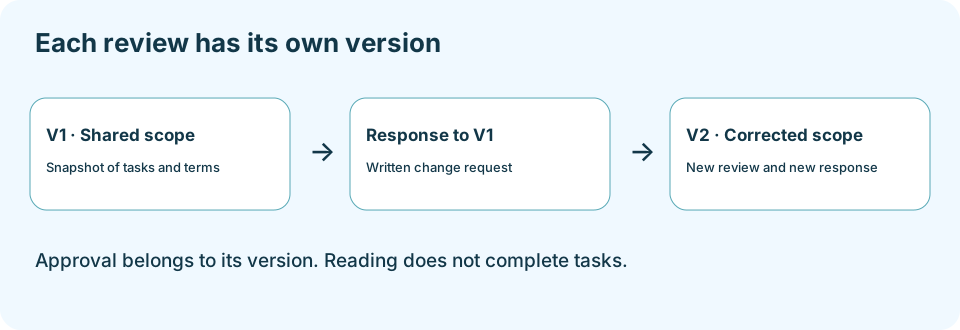
Enter the approver email and, when needed, a note for this review. Prepare the request and verify its version number and snapshot. The note belongs to that version and does not alter the original project text. Address an existing pending review before preparing another.
3. Share and record what happened
Open the review to check it. Send the link through Operator or the agreed channel. Copying a link does not send it. Confirm manual delivery only after actually sending it; recording delivery is not approval either.
4. Read the response and history
Check status, comments, respondent identity, and response date in history. A change request requires reviewing the comments and correcting the proposed work before preparing another version. Retain the answered version reference; editing tasks does not retrospectively change its snapshot.
5. Review later changes
After approval, the panel allows new tasks or tasks whose title or details changed to be proposed. Check what the new version contains. For recurring projects, verify whether approval covers only this period or future unchanged periods; do not assume it authorizes different terms.
Expected result
A version with traceable tasks, recipient, and response. Pending, changes requested, and approved remain separate states; scope approval does not complete tasks or authorize recurring charges.
Questions about this process
I cannot prepare another version
Check for a pending request, selected tasks, a valid recipient, and the required permissions. Do not generate alternative links to bypass review state.
The client cannot see the project in the portal
The real Projects list shows the latest approved scope; a later pending revision can remove the project from that list. Send the specific review link without promising it will appear there while pending.
Continue learning
Related questions
- FAQ-053 · How do I tell internal tasks apart from tasks visible to the client?
- FAQ-057 · How do I prepare and send a project scope for approval?
- FAQ-058 · What is the difference between scope versions?
- FAQ-059 · How do I request a change after the scope has been approved?
- FAQ-060 · How does approving the current period differ from approving future recurring periods?
To report a problem, include the section, steps, and exact message. Screenshots must not include passwords, payment-card data, or complete private links.