Services and renewals · 4 min read
Migrate a service without duplicate billing
Keep the previous system's invoice as history and prepare the next billing cycle as a separate record.
Pending workflow validation
This guide has been checked against the application code. Its workflow still needs validation in an isolated test account.
What you will achieve
Keep the previous system's invoice as history and prepare the next billing cycle as a separate record.
Before you start
- Authorized access to edit services for the correct client.
- The actual start and next renewal dates, plus the historical invoice number, date, and amounts.
- Actual payment details and source. The shared legacy invoice requires its PDF, up to 4 MB.
Steps
1. Identify the period being migrated
Check which dates the previous invoice covers and when the next cycle begins. Service start date is not the same as Customer since, which records when the client relationship with the agency began.
2. Configure the service using its actual source
In service settings, select Migrated / legacy service and confirm the start and next renewal dates. Separately indicate whether Customer since should be changed. Review the actual commercial terms and resulting service status; do not invent a payment or change the catalog just to pass validation.
3. Decide what to do with the next invoice
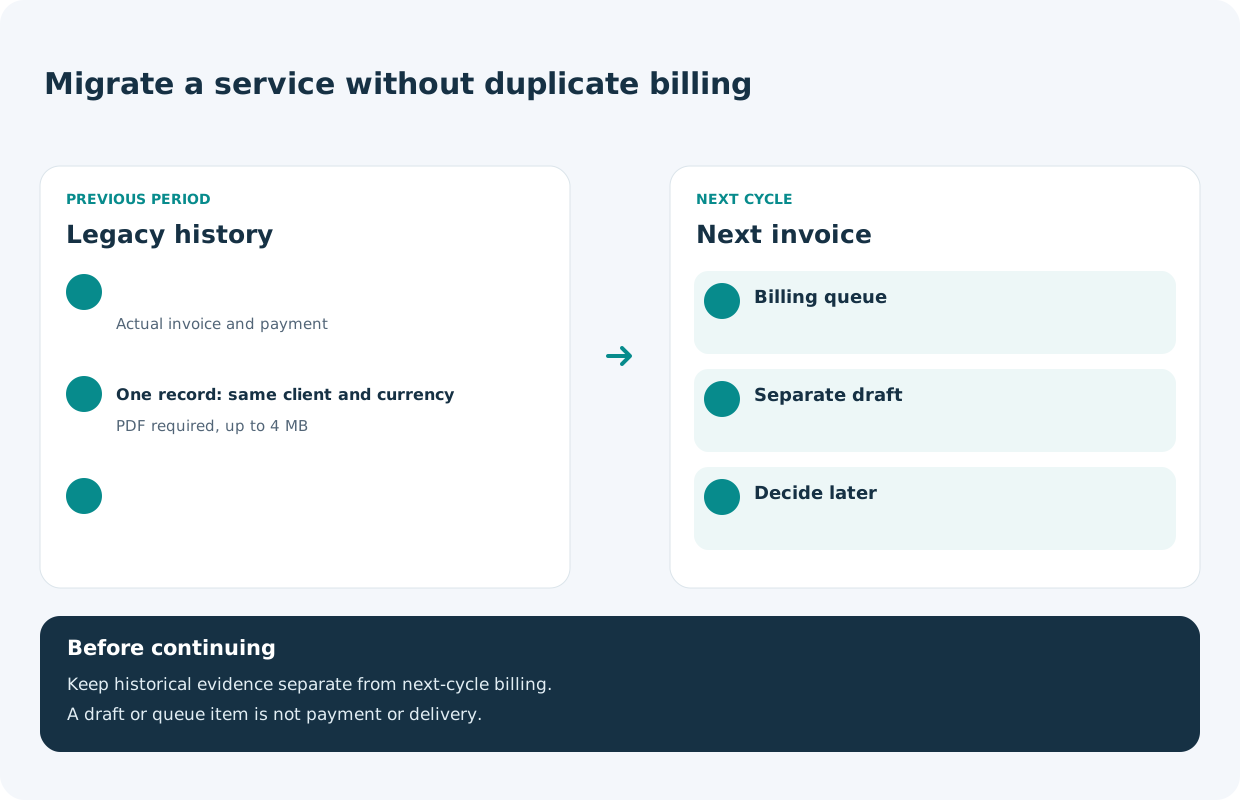
Under Next invoice, choose Add to Products ready to invoice to place it in the client queue; Create a draft invoice for this service only to prepare a separate document; or Decide later to leave future billing pending. This scheduling is available when the agency bills the client through DiMarAg. One Time services do not have recurring cycles.
4. Record historical evidence once
In Services, select Assign legacy invoice. Choose eligible services covered by the document for the same client and currency. Enter invoice and payment details and source, then attach the PDF up to 4 MB. The shared record allocates the amounts across initial cycles; do not copy the full total to every service.
5. Review the result before continuing
Check the amounts, differences, and selected services before selecting Save shared legacy invoice. Then review Legacy history and the next cycle separately. If an error appears, check whether the record already exists before retrying; a draft or queued item is not a payment or a sent invoice.
Expected result
A historical record separate from the next billing cycle. Review both records and their amounts before issuing a new invoice.
Important distinctions
- Legacy
- Evidence for the previous period; it does not create a second charge for that period.
- Next invoice
- Preparation for the next cycle, separate from historical evidence.
- Active
- The service’s operating status; it does not prove payment.
Questions about this process
Why can’t I select another service?
A shared record requires the same client and currency. A service may also be ineligible if its initial cycle already has historical billing or a linked invoice. Do not create duplicates to force selection.
Can I save without the PDF?
No. Assign shared legacy invoice requires a valid PDF no larger than 4 MB.
Does a difference in amounts prevent saving?
The screen warns if the invoice, payment, and expected cycle totals differ. Review the information and add the reason if known; do not change actual amounts just to make them match.
Continue learning
Related questions
- FAQ-027 · What is a Legacy invoice, and when should I use one?
- FAQ-028 · How do I record a migrated service and its historical proof of payment?
- FAQ-029 · How do I link one Legacy invoice to multiple services?
- FAQ-030 · How do I separate a Legacy history cycle from the next cycle billed in DiMarAg?
- FAQ-043 · How do I check whether an invoice already exists for a service’s next cycle?
To report a problem, include the section, steps, and exact message. Screenshots must not include passwords, payment-card data, or complete private links.