Clients and contacts · 3 min read
Invite a contact and manage portal access
Configure permissions, send the invitation, and distinguish resending, active access, and revocation.
Pending workflow validation
This guide has been checked against the application code. Its workflow still needs validation in an isolated test account.
What you will achieve
Leave a traceable invitation for the correct person without confusing saved permissions with activated access.
Before you start
- An active client, a contact belonging to that client, and Clients → Edit permission.
- A verified primary contact email and a notification email account available for sending.
Steps
1. Confirm identity and role
Open Portal access from the client profile. Check the company, contact, and primary email. Choose client administrator, member, or read-only and review permitted sections. Members do not have Quotes or Invoices; read-only does not grant write actions.
2. Save the configuration
Save the role and permissions for this contact. Check the result before sending. This creates or updates the configuration; it does not send an invitation or activate an account.
3. Send and check the state
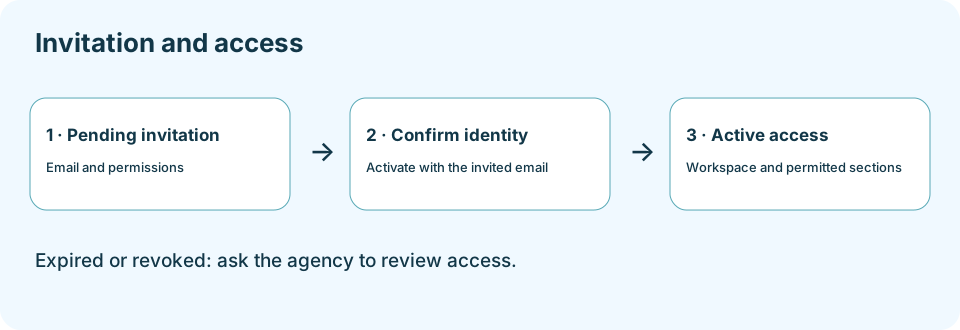
Use Send invitation and check the message and pending state. The person must open the email and complete activation using the invited identity. A sent invitation does not prove receipt, reading, or activation.
4. Handle a resend carefully
Check the email and state before resending. A new invitation revokes earlier pending invitations; tell the person to use the latest one. Invitations expire after seven days. Sending allows up to five attempts per 24 hours and requires at least 60 seconds between pending invitations; follow displayed errors and limits.
5. Distinguish active access from revocation
For active access, Send access link sends a temporary link to the linked account email, which may differ from the edited contact email. Revoke invalidates access and pending invitations without deleting the client or authentication account. Verify the new state and invite again only when appropriate.
Expected result
Configuration and invitation state checked. Access is active only after the person completes activation; changing permissions does not replace that confirmation.
Questions about this process
The email will not send
Read the notification account, authentication, or delivery error. Do not treat a send failure as a usable invitation; resolve the configuration with an authorized person and check the state before retrying.
The link expired or was revoked
First verify identity and client state. Send a new invitation when appropriate and explain that earlier pending invitations no longer work. Reactivating a client does not automatically invite anyone.
Continue learning
Related questions
- FAQ-003 · What is the difference between agency access and the client portal?
- FAQ-006 · Why can’t I see a section or perform an action?
- FAQ-015 · How do I add multiple contacts and choose the primary contact?
- FAQ-073 · How do I select one or more contacts without sending a message to the wrong person?
- FAQ-074 · How do I choose a channel, and why might some channels be unavailable?
To report a problem, include the section, steps, and exact message. Screenshots must not include passwords, payment-card data, or complete private links.