Quotes · 3 min read
Prepare a draft quote
Choose a recipient, build line items, and review the scope before sharing.
Pending workflow validation
This guide has been checked against the application code. Its workflow still needs validation in an isolated test account.
What you will achieve
Save a reviewable commercial proposal without confusing creation with sending or approval.
Before you start
- Quotes access and permission to work with the recipient.
- An active client or existing lead, internally agreed scope, quantities, prices, and currency.
Steps
1. Open the builder
In Quotes, choose create new. Search for and select exactly one recipient: client or lead. Check the name and displayed contact details before continuing.
2. Build each line
The default source is Custom Product / Service: enter a separate title and description, a positive integer quantity, and a nonnegative unit price. For catalog items, choose Product or Service from Our Catalog, optionally filter by category, and explicitly select the item and required active variant. Choosing a category does not select the product. Check currency, cycle, and proposed price; changes affect the document, not the catalog. Switching source or category clears selections and draft fields: check them before saving the line.
3. Review the terms
Check currency, expiration date, discounts, taxes, deposit, and notes. With selectable approval, review which items the client can choose; the proposed total does not prove all items were accepted.
4. Save the draft
Select create draft. Open the resulting quote and review its number, recipient, lines, and totals. If validation appears, correct the stated field before retrying.
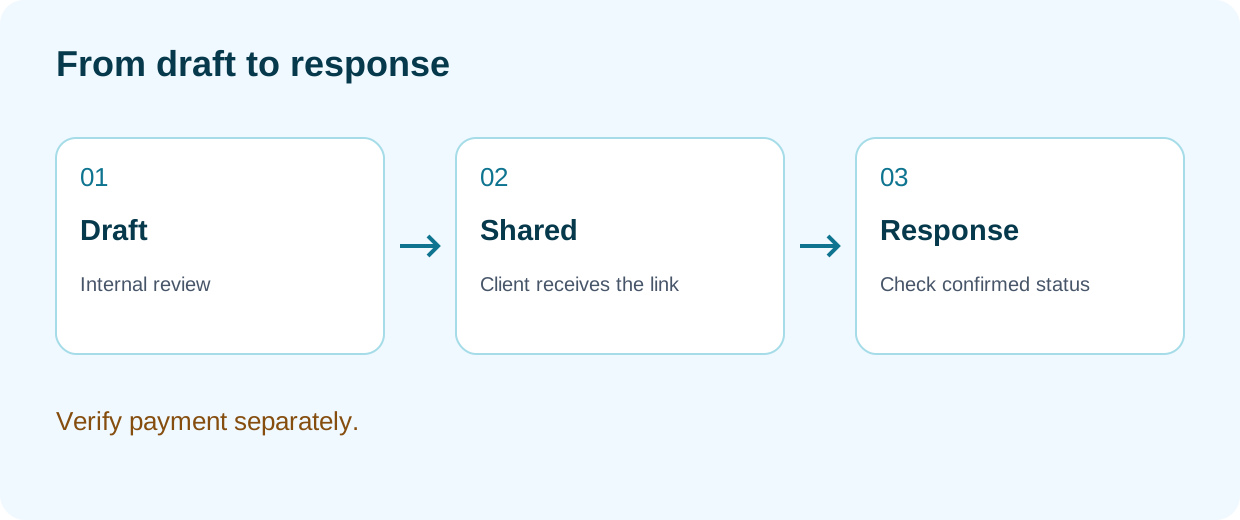
5. Separate preparation from sharing
Review the document view before enabling or sending its link through the available actions. Sharing and receiving approval are later steps. Creating a draft does not create a paid invoice or confirm the service.
Expected result
A quote in draft status ready for internal review. The client response and invoicing require later actions.
Questions about this process
The recipient is wrong
Stop and correct it before sharing. Do not select both a client and a lead.
I cannot find the product
The selector uses active products. Confirm the scope with the catalog administrator; use a custom item only when appropriate, with an explicit title and price.
Continue learning
Related questions
To report a problem, include the section, steps, and exact message. Screenshots must not include passwords, payment-card data, or complete private links.